Google Introduces Gemini AI Directly in Chrome's Address Bar
Google continues to develop its AI solutions by integrating Gemini directly into Chrome's address bar. Here's how to enable it.

Google is following Microsoft's lead by integrating its artificial intelligence chatbot into everything the company builds. The latest product is the Chrome browser, where Gemini is now making its entrance in the address bar.
How Does Gemini Work in Chrome's Address Bar?
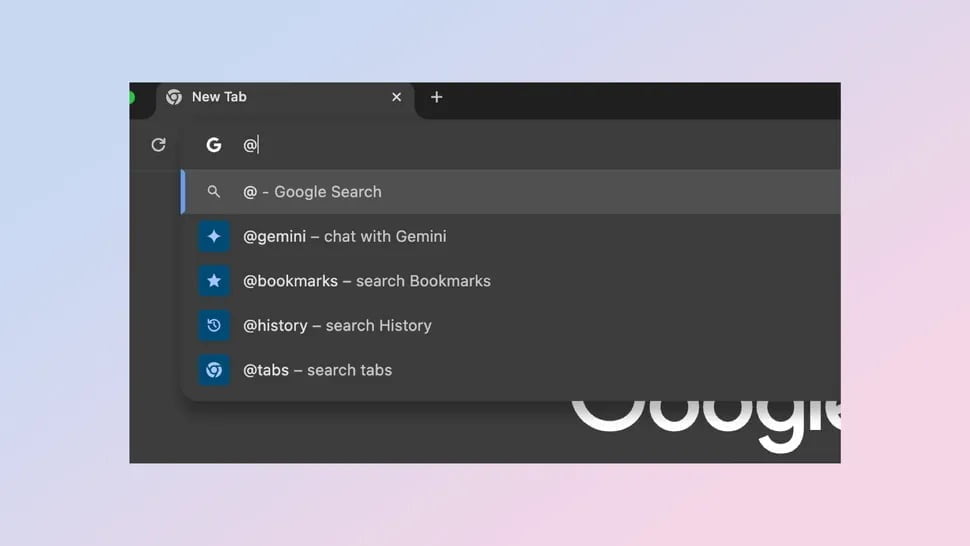
The feature is currently only available in Chrome Canary, a developer version of the browser. Users can type @gemini in the address bar along with their question, which immediately sends it to the Gemini app.
The system is designed to work seamlessly, and unlike what rumors suggested about Microsoft's Copilot, Gemini doesn't try to answer directly in the address bar.
Why Use Gemini From the Address Bar?
Google is investing heavily in getting users to want to use AI for a wide range of purposes, and Gemini seems to be their way of bringing it all under one roof. You can now also tag other Google products within Gemini, enabling use through natural language commands.
Allowing users to tag and ask Gemini questions directly from the address bar is about making it easier for users to navigate the browser. This is implemented as part of a site search starter pack extension, so in the future you may also be able to tag other AI assistants in the address bar.
When you type @gemini, the address bar turns into a place where you can ask or type anything you'd like to know more about. For example, if you're browsing a website and see an interesting word, you can type @gemini what does this word mean <word>.
How Do You Access Gemini From the Address Bar?
According to Chrome Story, which first spotted the update, you need to download Chrome Canary, the developer version of Chrome, and enable a couple of experimental flags.
Go to the flag settings via chrome://flags and search for "Expansion pack for the Site search starter pack" and "IPH message for the Site search starter pack," and enable these. Then restart Google Chrome Canary to gain access to @gemini in the address bar.
You still need to have registered a Google Gemini account to use the service, but if you have an account, a new conversation automatically starts with what you typed in the address bar as the initial prompt — eliminating a step compared to visiting Gemini directly.